一、
1、图形显示
- 图素法
- 像素法
- 图素法---矢量图:以图形对象为基本元素组成的图形,如矩形、 圆形
- 像素法---标量图:以像素点为基本单位形成图形
2、图形用户界面:Graphical User Interface,GUI
- Tkinter---Python 标准GUI
- Graphics---基于Tkinter扩展图形库
- Turtle---python内置的图形库。
3、安装graphics库
安装在D:\Python3\Lib\site-packages,网址http://mcsp.wartburg.edu/zelle/python/graphics.py
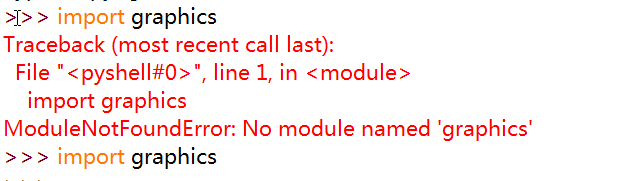
4、graphics库
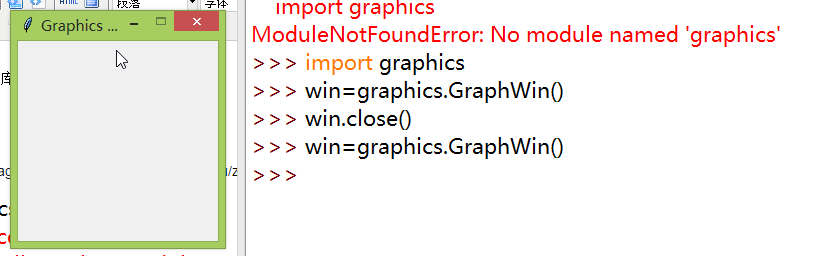
(1)创建图形窗口
图形窗口
点(像素)的集合
GraphWin对象尺寸默认值:高200像素,宽200像素。
参考坐标系
- n Graphics\Tkinter
- n 点(0,0)表示屏幕左上角
- n X轴正方向为从左到右
- n Y轴正方向为从上到下。
- n 默认窗口大小为200*200
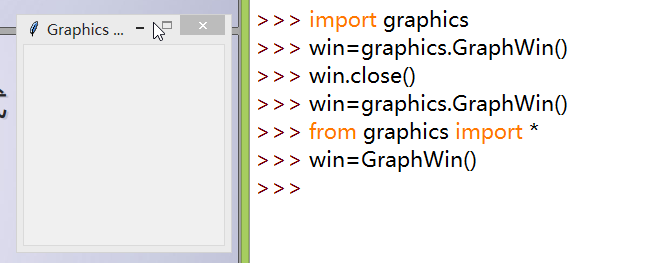
简洁形式
(2)点
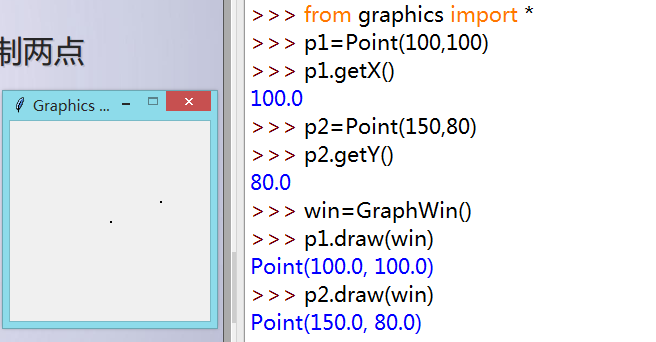
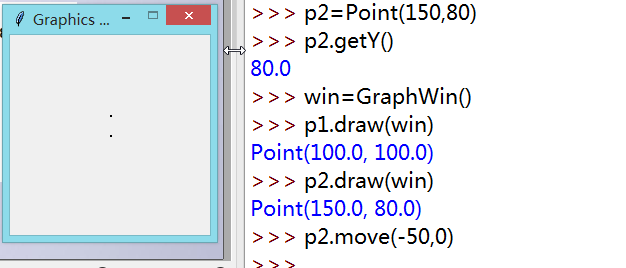
移动点
move(x,y)方法 清除原来点的图像,并在新位置重新绘制 两个数字参数:x,y
(2)圆
from graphics import *
win=GraphWin()
leftEye=Circle(Point(80,80),5)
leftEye.setFill("yellow")
leftEye.setOutline("red")
rightEye=leftEye
rightEye.move(40,0)

leftEye.draw(win)
rightEye.draw(win)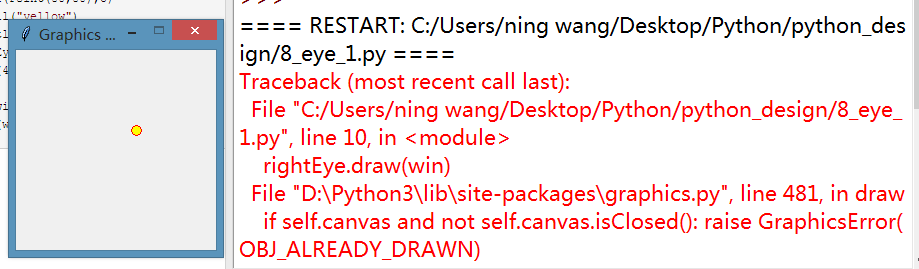
左眼右眼重叠了,说明,移动后原来的图就不存在了。
from graphics import *
win=GraphWin()
leftEye=Circle(Point(80,80),5)
leftEye.setFill("yellow")
leftEye.setOutline("red")
rightEye=Circle(Point(120,80),5)
rightEye.setFill("yellow")
rightEye.setOutline("red")

leftEye.draw(win)
rightEye.draw(win)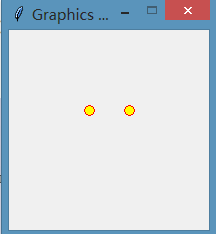
(3)face
from graphics import *

win=GraphWin()
face=Circle(Point(100,95),50)
leftEye=Circle(Point(80,80),5)
leftEye.setFill("yellow")
leftEye.setOutline("red")
rightEye=Circle(Point(120,80),5)
rightEye.setFill("yellow")
rightEye.setOutline("red")
mouth=Line(Point(80,110),Point(120,110))

face.draw(win)
mouth.draw(win)
leftEye.draw(win)
rightEye.draw(win)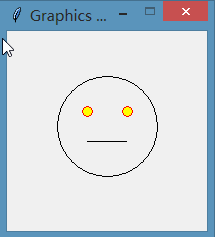
5、交互式图形接口
图形用户界面(图形用户接口), n 采用图形方式显示的计算机操作用户界面 n 用于程序的输入和输出 n 事件驱动
Graphics模块 n 隐藏了底层事件的处理机制, n 提供了获得用户在窗口中的输入 n 捕捉鼠标点击 n 处理文本输入
(1)捕捉鼠标点击
from graphics import *

def main():
 win=GraphWin("Click me")#标题栏名
 for i in range(10):
 p=win.getMouse()
 print("you click at:",p.getX(),p.getY())
if __name__=="__main__":
 main()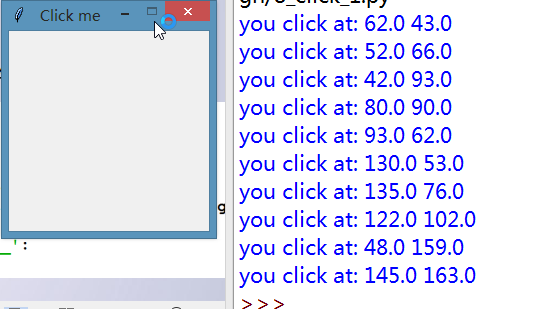
(2)四边形
from graphics import *

def main():
 win=GraphWin("draw a polygon",500,500)#标题栏名
 win.setCoords(0,0,500,500)#变换坐标,左下角和右上角
 message=Text(Point(250,50),"click on four points")#下面中心位置
 message.draw(win)

 #获取四个点
 p1=win.getMouse()
 p1.draw(win)
 p2=win.getMouse()
 p2.draw(win)
 p3=win.getMouse()
 p3.draw(win)
 p4=win.getMouse()
 p4.draw(win)

 #顺次画出闭合图形
 polygon=Polygon(p1,p2,p3,p4)
 polygon.setFill("red")
 polygon.setOutline('black')
 polygon.draw(win)

 message.setText('click anywhere to quit')
 win.getMouse()

if __name__=="__main__":
 main()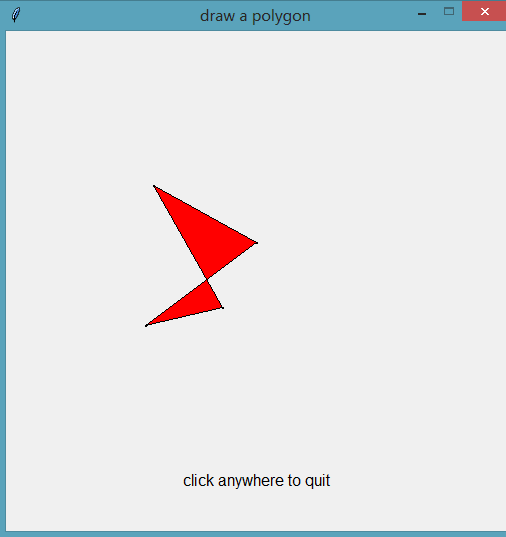
6、温度转换界面
(1)输入窗口
from graphics import *

win = GraphWin("Celsius Converter", 400, 300)#载入界面,标题栏
win.setCoords(0.0, 0.0, 3.0, 4.0)#按比例转换坐标

# 绘制接口
Text(Point(1,3), " Celsius Temperature:").draw(win)#输入文字
Text(Point(1,1), "Fahrenheit Temperature:").draw(win)

input= Entry(Point(2,3),5)#前面是位置,后面是宽度,可以写数字
input.setText("0.0")
input.draw(win)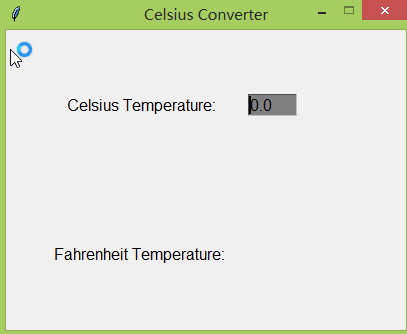
Entry输入可以让用户自己输入内容,setText()是填充入内容,用户可以修改。
(2)完整代码
from graphics import *

win = GraphWin("Celsius Converter", 400, 300)#载入界面,标题栏
win.setCoords(0.0, 0.0, 3.0, 4.0)#按比例转换坐标

# 绘制接口
Text(Point(1,3), " Celsius Temperature:").draw(win)#输入文字
Text(Point(1,1), "Fahrenheit Temperature:").draw(win)

input= Entry(Point(2,3),5)#前面是位置,后面是宽度,可以写数字
input.setText("0.0")
input.draw(win)

output = Text(Point(2,1),"")#确定输出位置
output.draw(win)

button = Text(Point(1.5,2.0),"Convert It")#按钮字样
button.draw(win)
Rectangle(Point(1,1.5), Point(2,2.5)).draw(win)#长方形

# 等待鼠标点击
win.getMouse()
# 转换输入
celsius = eval(input.getText())#得到你的输入值,getText()

fahrenheit = 9.0/5.0 * celsius + 32.0
# 显示输出,改变按钮
output.setText(fahrenheit)#输出温度值,setText()
button.setText("Quit")
# 等待响应鼠标点击,退出程序
win.getMouse()
win.close()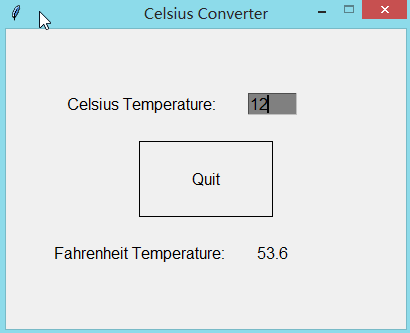
体会Text和Entry的区别,前者只能由程序输入内容,后者可以在图形界面输入内容;两者都是用getText()获取内容,用setText()展示内容。
三、tkinter库
7、创建GUI程序的基本步骤为: n 导入Tk模块. n 创建GUI应用程序的主窗口. n 添加控件或GUI应用程序. n 进入主事件循环,等待响应用户触发事件
15种常见的 Tk 控件 Button, Canvas, Checkbutton, Entry, Frame, Label, Listbox, Menubutton, Menu, Message, Radiobutton, Scale Scrollbar, Text, Toplevel, Spinbox PanedWindow, LabelFrame, tkMessageBox
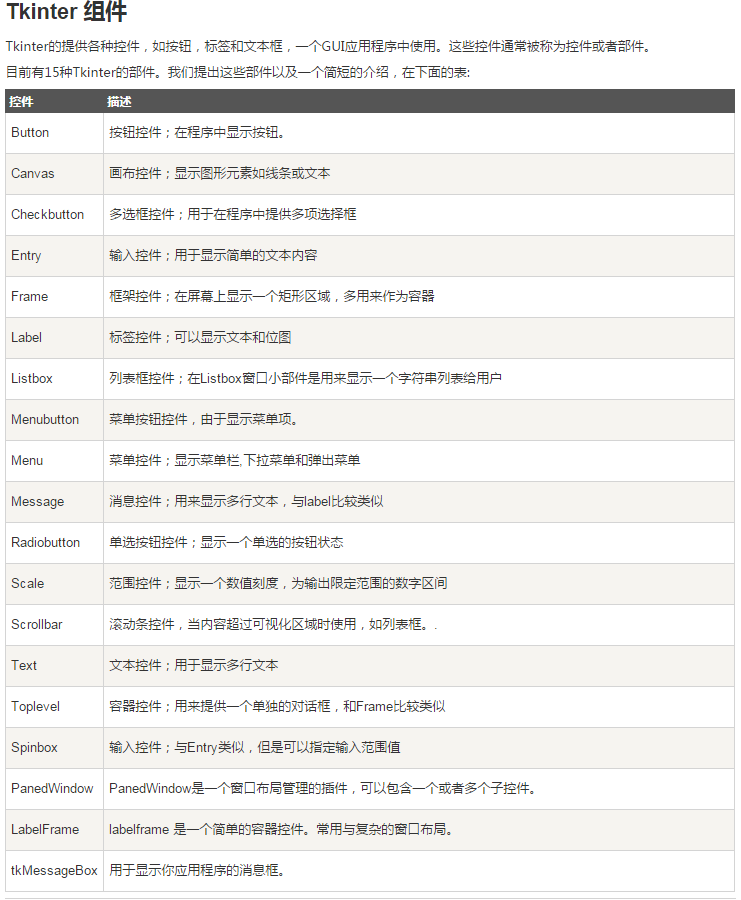
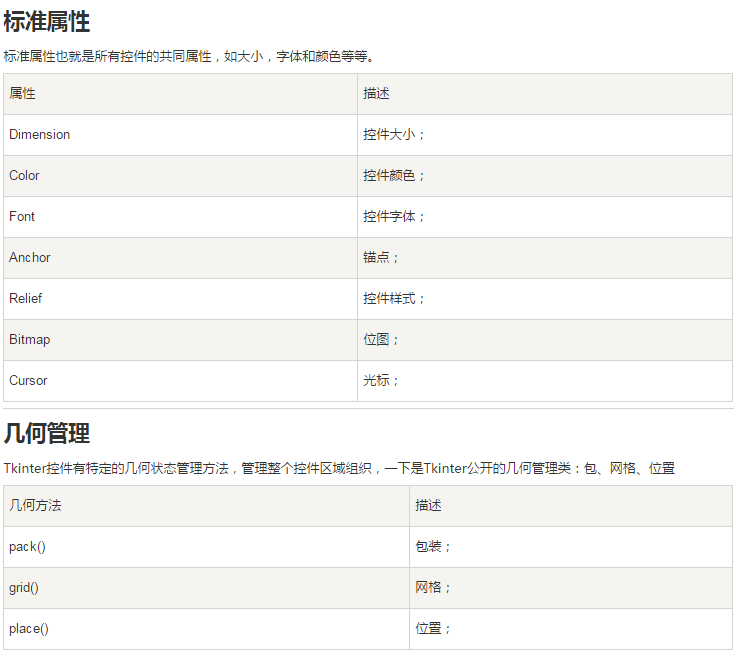
共同属性 n Dimensions :尺寸 n Colors:颜色 n Fonts:字体 n Anchors:锚 n Relief styles:浮雕式 n Bitmaps:显示位图 n Cursors:光标的外形
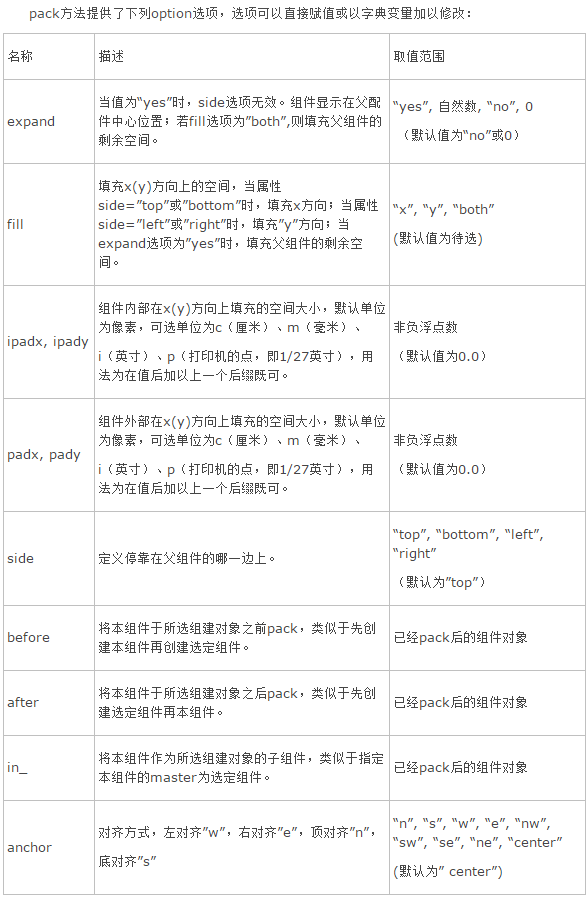
(1)界面布局 n Tkinter三种几何管理方法 n pack() n grid() n place()
创建GUI应用程序窗口代码模板
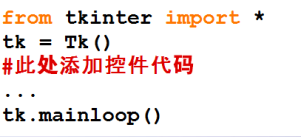
from tkinter import *

tk=Tk()
label=Label(tk,text="welcome to python Tkinter")#标签
button=Button(tk,text="click me")#按钮
label.pack()
button.pack()
tk.mainloop()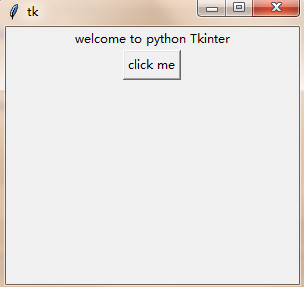
(2)响应用户事件示例
from tkinter import *

def processOK():
 print("OK button is clicked")#点击之后会在idle中显示

def processCancel():
 print("cancel button is clicked")

def main():
 tk=Tk()
 btnOK=Button(tk,text="OK",fg="red",command=processOK)#文本,字体颜色,和点击评论,并没有标定具体位置,
 btnCancel=Button(tk,text="cancel ",bg="yellow",command=processCancel)
 btnOK.pack()
 btnCancel.pack()

 tk.mainloop()

if __name__=="__main__":
 main()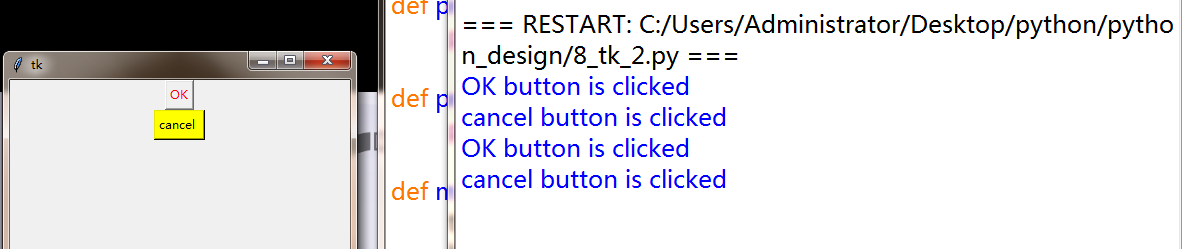
(3)显示文字、图片、绘制图形
from tkinter import *

def main():
 tk=Tk()
 canvas=Canvas(tk,width=300,height=200)#创建画布,宽和高
 canvas.pack()#显示画布
 #创建文字,(150,40)中心点,内容,颜色,字体,大小
 canvas.create_text(150,40,text="welcome to Tkinter",fill='blue',font=("Times",16))

 myImage=PhotoImage(file="python_logo.gif")
 #创建图片,只能gif格式,(65,70)左上角坐标
 canvas.create_image(65,70,anchor="nw",image=myImage)

 canvas.create_rectangle(65,70,240,130)

 tk.mainloop()
if __name__=="__main__":
 main()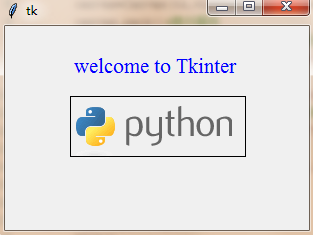
(4)控制图形移动的示例
from tkinter import *

tk=Tk()
canvas=Canvas(tk,width=400,height=400)#创建画布
canvas.pack()

def moverectangle(event):
 if event.keysym=="Up":#获取你点击的键盘内容
 canvas.move(1,0,-5)
 print(event.keysym)

 elif event.keysym=="Down":
 canvas.move(1,0,5)
 print(event.keysym)

 elif event.keysym=="Left":
 canvas.move(1,-5,0)
 print(event.keysym)

 elif event.keysym=="Right":
 canvas.move(1,5,0)
 print(event.keysym)

canvas.create_rectangle(10,10,50,50,fill="red")#画出方块

canvas.bind_all("<KeyPress-Up>",moverectangle)#通过键盘,触发函数
canvas.bind_all("<KeyPress-Down>",moverectangle)
canvas.bind_all("<KeyPress-Left>",moverectangle)
canvas.bind_all("<KeyPress-Right>",moverectangle)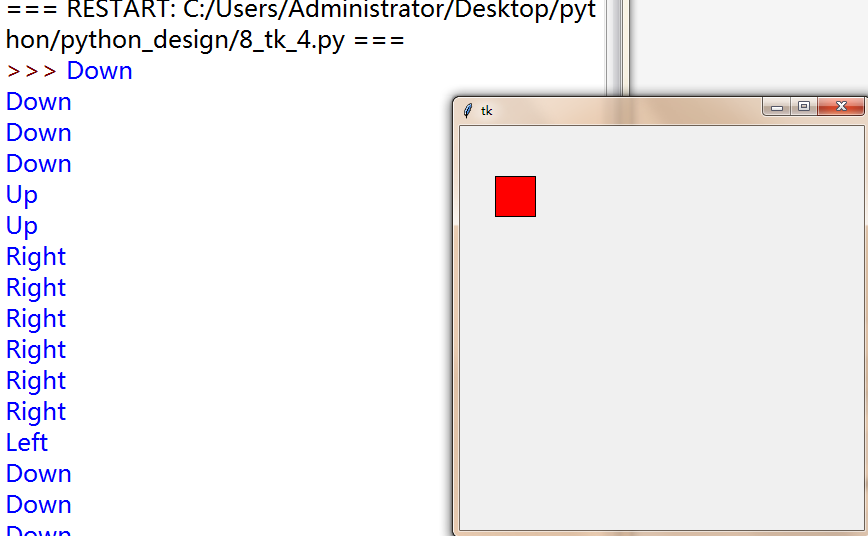
四、图形库的应用方法
1、Graphwin对象
一个程序可以定义任意数量的窗体 n GraphWin() n 默认标题是“Graphics Window” n 默认大小为200*200
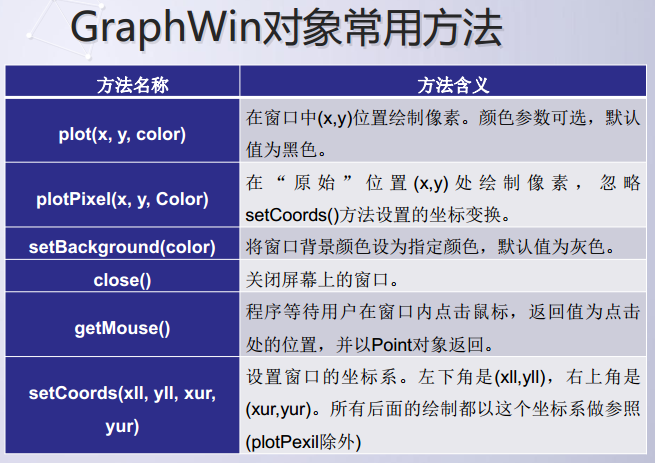
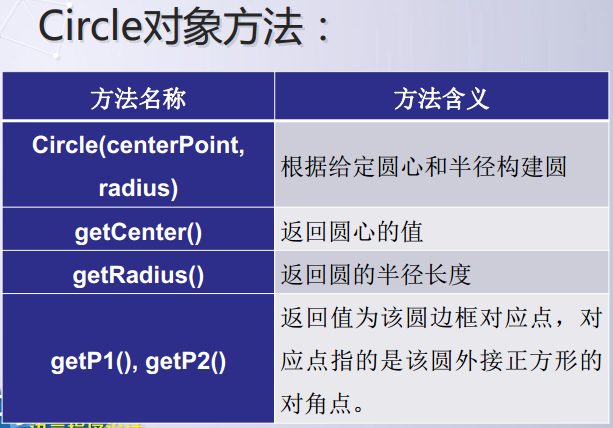
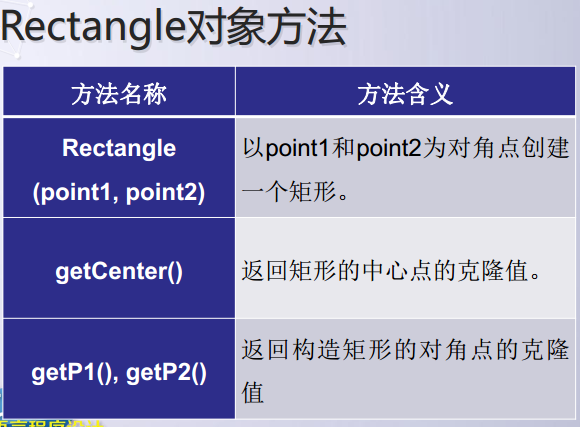
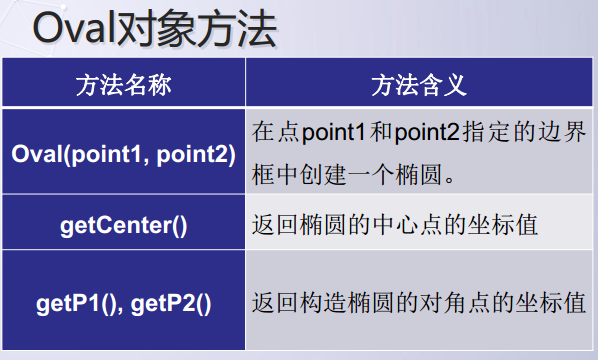
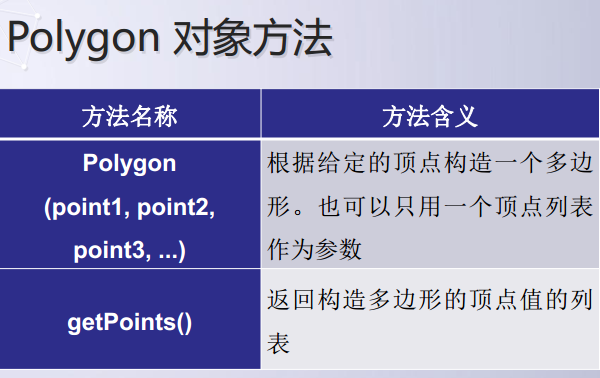
2、图形对象 n 点、 线段、 圆、 椭圆、 矩形、 多边形以及文本 n 默认初始化 n 黑色边框 n 没有被填充
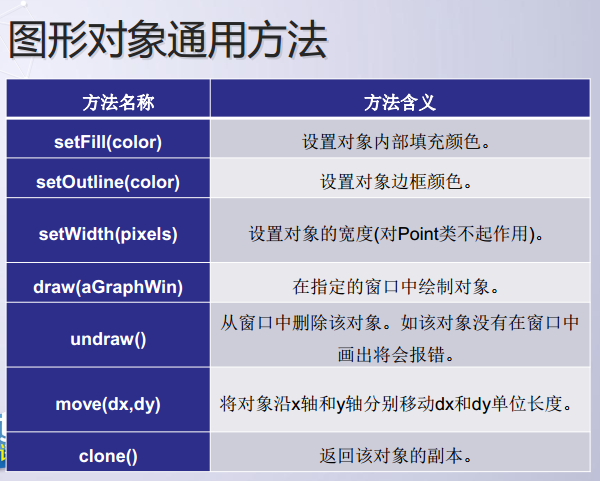
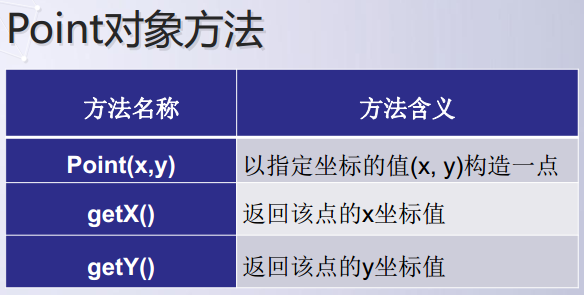
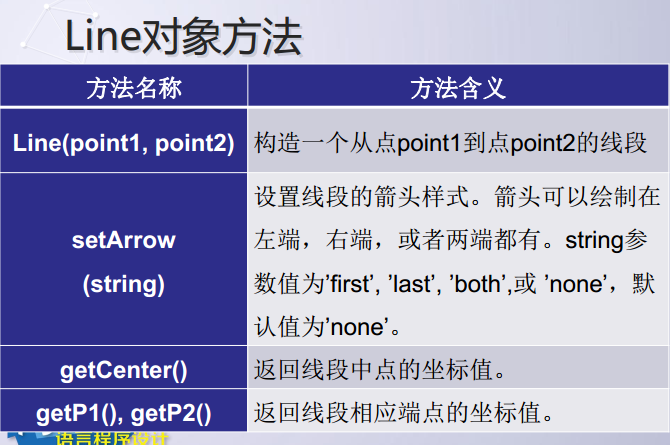
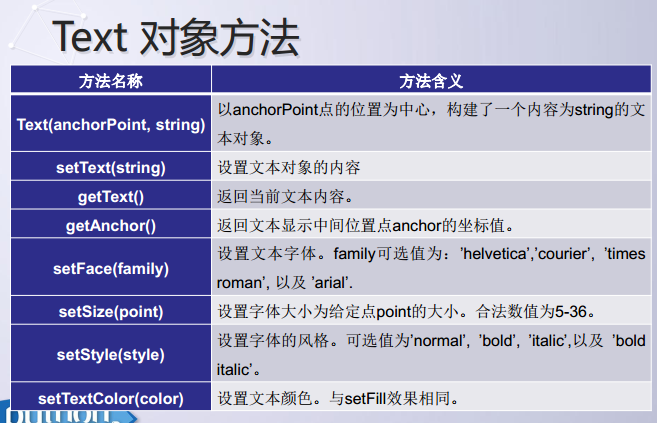
3、图形颜色
Python中颜色由字符串指定 n 很多颜色具有不同深浅 n 红色逐渐加深 n ‘red1' ‘red2' ‘red3' ‘red4
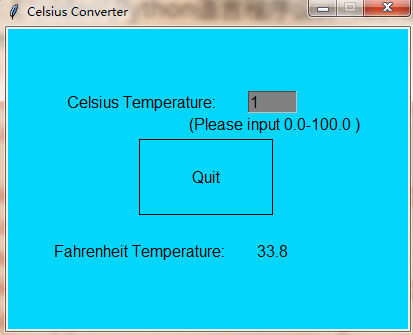
color_rgb(red,green,blue)函数 n 设定颜色数值获得颜色 n 三个参数为0-255范围内的整数 n 返回一个字符串 color_rgb(255,0,0) 亮红色, color_rgb(130,0,130) 中度洋红色
from graphics import *

def convert(input):
 celsius = eval(input.getText()) # 输入转换
 fahrenheit = 9.0/5.0 * celsius + 32
 return fahrenheit

#颜色变化算法
def colorChange(win,input):
 cnum = eval(input.getText())
 weight =cnum / 100.0
 newcolor =color_rgb(int(255*weight),int(66+150*(1-weight)),int(255*(1-weight)))#算法核心
 win.setBackground(newcolor)

def main():
 win = GraphWin("Celsius Converter", 400, 300)
 win.setCoords(0.0, 0.0, 3.0, 4.0)

 # 绘制输入接口,三行提示
 Text(Point(1,3),
 " Celsius Temperature:").draw(win)
 Text(Point(2,2.7),
 " (Please input 0.0-100.0 )").draw(win)
 Text(Point(1,1),
 "Fahrenheit Temperature:").draw(win)

 input = Entry(Point(2,3), 5)
 input.setText("0.0")
 input.draw(win)

 output = Text(Point(2,1),"")
 output.draw(win)

 button = Text(Point(1.5,2.0),"Convert It")
 button.draw(win)

 rect = Rectangle(Point(1,1.5), Point(2,2.5))
 rect.draw(win)
 # 等待鼠标点击
 win.getMouse()
 print(win.getMouse())
 result = convert(input) # 转换输入
 output.setText(result) # 显示输出
 # 改变颜色
 colorChange(win,input)
 # 改变按钮字体
 button.setText("Quit")
 # 等待点击事件,退出程序
 win.getMouse()
 win.close()

if __name__ == '__main__':
 main()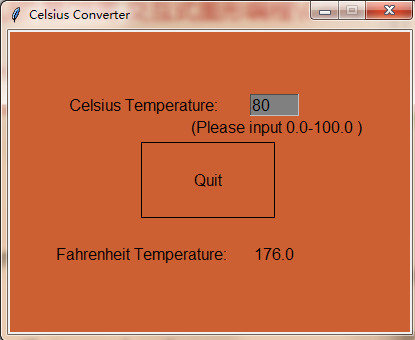
五、turtle库
Turtle 库 n Python内置图形化模块
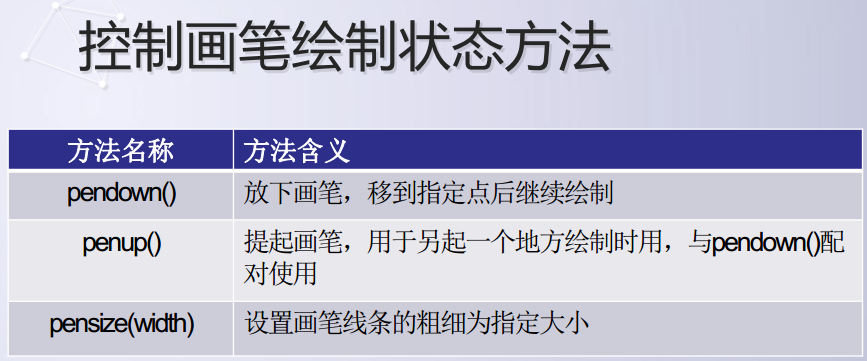
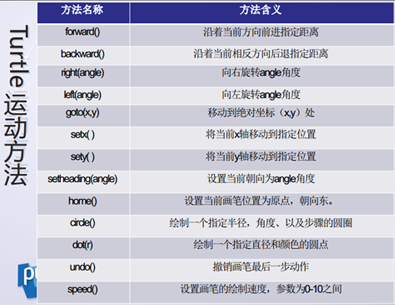
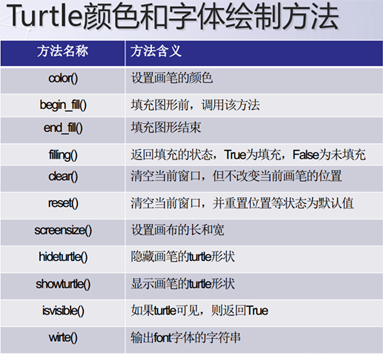
from turtle import *

def main():
 pensize(3)
 penup()
 goto(-200,-50)
 pendown()
 begin_fill()
 color("red")
 circle(40,steps=3)
 end_fill()

 pensize(3)
 penup()
 goto(-100,-50)
 pendown()
 begin_fill()
 color("green")
 circle(40,steps=4)
 end_fill()

 pensize(3)
 penup()
 goto(0,-50)
 pendown()
 begin_fill()
 color("blue")
 circle(40,steps=5)
 end_fill()

 pensize(3)
 penup()
 goto(100,-50)
 pendown()
 begin_fill()
 color("yellow")
 circle(40,steps=6)
 end_fill()

 pensize(3)
 penup()
 goto(200,-50)
 pendown()
 begin_fill()
 color("purple")
 circle(40)
 end_fill()

 color("green")
 penup()
 goto(-100,50)
 pendown()
 write(("cool colorful shapes"),
 font=("Times",18,"bold"))
 hideturtle()

if __name__=="__main__":
 main()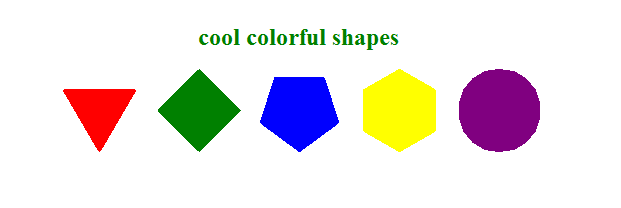
六、tkinter库的聊天界面
(1)
from tkinter import *
import time

def main():

 def sendMsg():#发送消息
 strMsg = '我:' + time.strftime("%Y-%m-%d %H:%M:%S",
 time.localtime()) + '\n '
 txtMsgList.insert('0.0', strMsg, 'greencolor')#END,文本结尾,也即开头。后面是标签名称
 txtMsgList.insert('0.0', txtMsg.get('0.0', END))#"0.0",文本开头
 txtMsg.delete('0.0', END)

 def cancelMsg():#取消消息
 txtMsg.delete('0.0', END)

 def sendMsgEvent(event): #发送消息事件
 if event.keysym == "Up":
 sendMsg()

 #创建窗口
 t = Tk()
 t.title('与python聊天中')

 #创建frame容器
 frmLT = Frame(width=500, height=320, bg='white')
 frmLC = Frame(width=500, height=150, bg='white')
 frmLB = Frame(width=500, height=30)
 frmRT = Frame(width=200, height=500)

 #创建控件
 txtMsgList = Text(frmLT)
 txtMsgList.tag_config('greencolor', foreground='red')#创建tag,
 #"greencolor"是名称,后面是颜色
 txtMsg = Text(frmLC);
 txtMsg.bind("<KeyPress-Up>", sendMsgEvent)
 btnSend = Button(frmLB, text='发 送', width = 8, command=sendMsg)
 btnCancel = Button(frmLB, text='取消', width = 8, command=cancelMsg)
 imgInfo = PhotoImage(file = "python_logo.gif")
 lblImage = Label(frmRT, image = imgInfo)
 lblImage.image = imgInfo

 #窗口布局columnspan选项可以指定控件跨越多列显示,
 #而rowspan选项同样可以指定控件跨越多行显示。
 frmLT.grid(row=0, column=0, columnspan=2, padx=1, pady=3)
 frmLC.grid(row=1, column=0, columnspan=2, padx=1, pady=3)
 frmLB.grid(row=2, column=0, columnspan=2)
 frmRT.grid(row=0, column=2, rowspan=3, padx=2, pady=3)
 #固定大小
 frmLT.grid_propagate(0)
 frmLC.grid_propagate(0)
 frmLB.grid_propagate(0)
 frmRT.grid_propagate(0)

 btnSend.grid(row=2, column=0)
 btnCancel.grid(row=2, column=1)
 lblImage.grid()
 txtMsgList.grid()
 txtMsg.grid()

 #主事件循环
 t.mainloop()

if __name__ == '__main__':
 main()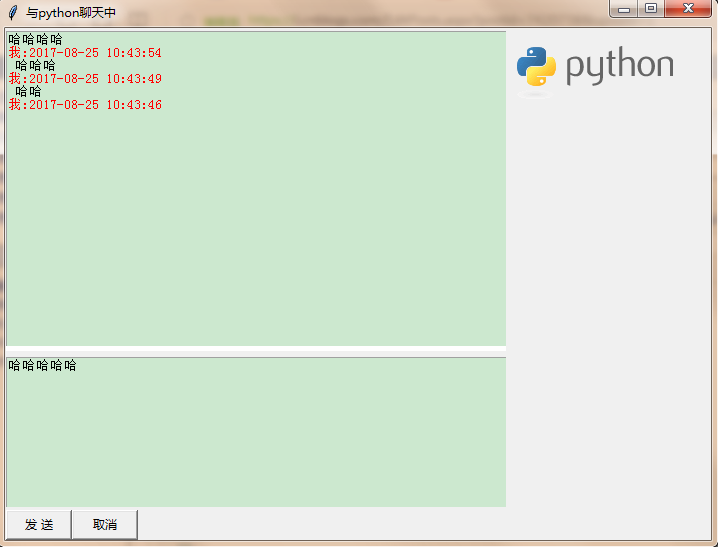
利用grid(),对界面进行布局
tag()设置标签格式(颜色)
time()输出时间
insert()一定要注意,是从开头插入还是末尾插入,否则就出现了上述的情况,新输入的在上方
更改如下
from tkinter import *
import time

def main():

 def sendMsg():#发送消息
 strMsg = '我:' + time.strftime("%Y-%m-%d %H:%M:%S",
 time.localtime()) + '\n '
 print(strMsg)
 txtMsgList.insert(END, strMsg,"greencolor")#插入年月日
 txtMsgList.insert(END, txtMsg.get('0.0', END))#输入的内容,0.0表示文本开始
 txtMsg.delete('0.0', END)#删除中间刚输入的内容

 def cancelMsg():#取消消息
 txtMsg.delete('0.0', END)

 def sendMsgEvent(event): #发送消息事件:
 if event.keysym == "Up":
 sendMsg()

 #创建窗口
 t = Tk()
 t.title('与python聊天中')

 #创建frame容器
 frmLT = Frame(width=500, height=320, bg='white')
 frmLC = Frame(width=500, height=150, bg='white')
 frmLB = Frame(width=500, height=30)
 frmRT = Frame(width=200, height=500)

 #创建控件
 txtMsgList = Text(frmLT)
 # txtMsgList.tag_config('greencolor', foreground='#008C00')#创建tag
 txtMsg = Text(frmLC);
 txtMsg.bind("<KeyPress-Up>", sendMsgEvent)

 #发送取消按钮和图片
 btnSend = Button(frmLB, text='发 送', width = 8, command=sendMsg)
 btnCancel = Button(frmLB, text='取消', width = 8, command=cancelMsg)
 imgInfo = PhotoImage(file = "python_logo.gif")
 lblImage = Label(frmRT, image = imgInfo)
 lblImage.image = imgInfo

 #窗口布局columnspan选项可以指定控件跨越多列显示,
 #而rowspan选项同样可以指定控件跨越多行显示。
 frmLT.grid(row=0, column=0,columnspan=2, padx=1, pady=3)
 frmLC.grid(row=1, column=0, columnspan=2,padx=1, pady=3)
 frmLB.grid(row=2, column=0,columnspan=2)
 frmRT.grid(row=0, column=2, columnspan=2,rowspan=3, padx=2, pady=3)
 #固定大小
 frmLT.grid_propagate(0)
 frmLC.grid_propagate(0)
 frmLB.grid_propagate(0)
 frmRT.grid_propagate(0)

 #按钮和图片
 btnSend.grid(row=2,column=0)
 btnCancel.grid(row=2,column=1)
 lblImage.grid()

 txtMsgList.grid()
 txtMsg.grid()

 #主事件循环
 t.mainloop()

if __name__ == '__main__':
 main()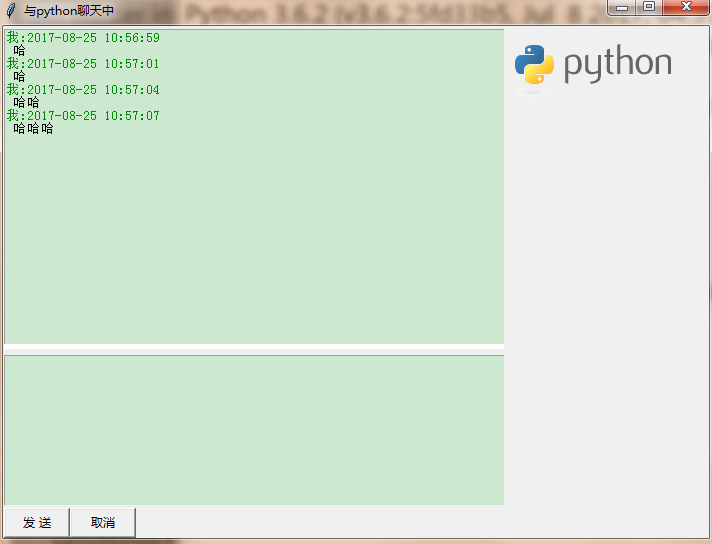
以上就是本文的全部内容,希望对大家的学习有所帮助,也希望大家多多支持脚本之家。